AboutTermsPrivacyContact
 
Updating
MP3 2 Ringtone

MP3 2 Ringtone

Released: 2010-09-08
© 2012-2013 Copyright Elma DIGITAL
MP3 2 Ringtone - QR Code
Version 3.4
4+
Download on the App Store
Version 3.4
4+
Download on the App Store
Released: 2010-09-08
© 2012-2013 Copyright Elma DIGITAL

iPhone Screenshots

Screenshot
Screenshot
Screenshot
Screenshot
Screenshot

iPad Screenshots

Screenshot
Screenshot
Screenshot
Screenshot

Description

Convert MP3s in your iPod library 2 Ringtones !
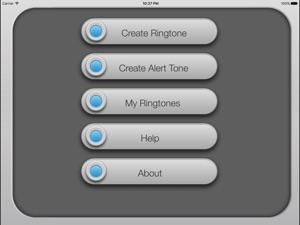
MP3 2 Ringtone is a Sound convertor application. It uses MP3 songs in your iPod Library to make ringtones.
This application has good features beside converting,
* App is working on all iPhone models
* App supports fade effects for the beginning and end of the song.
* With fine tuning feature, you never miss a tone note.
* App supports file manager to manage app's shared folder.
NOTE: MP3 purchased from iTunes Store put DRM on all songs.So they contain copyright protection and cannot be used as input to create ringtones.

What's New in Version 3.4

This app has been updated by Apple to display the Apple Watch app icon.
Improved stability

Seller

Name

Elma Digital ltd

Information

Categories

Version

3.4

Size

21.4 MB

Game Center

No

VPP Device Licensing

Yes

Rating

Rated: 4+

Compatibility

iOS 7.0 or later

Devices

iPhone 4, iPhone 4S, iPhone 5, iPhone 5c, iPhone 5s, iPhone 6, iPhone 6 Plus, iPhone 6s, iPhone 6s Plus, iPhone SE, iPhone 7, iPhone 7 Plus, iPhone 8, iPhone 8 Plus, iPhone X, iPhone XR, iPhone XS, iPhone XS Max, iPhone 11, iPhone 11 Pro, iPhone 11 Pro Max, iPhone SE (2nd generation), iPhone 12, iPhone 12 Pro, iPhone 12 Pro Max, iPhone 12 mini, iPhone 13, iPhone 13 Pro, iPhone 13 Pro Max, iPhone 13 mini, iPhone SE (3rd generation), iPhone 14, iPhone 14 Plus, iPhone 14 Pro, iPhone 14 Pro Max, iPad 2 (Wi-Fi), iPad 2 (3G), iPad (3rd Generation) (Wi-Fi), iPad (3rd Generation) (4G), iPad (4th Generation) (Wi-Fi), iPad (4th Generation) (4G), iPad (5th Generation) Wi-Fi, iPad (5th Generation) Wi-Fi + Cellular, iPad (6th generation) Wi-Fi, iPad (6th generation) Wi-Fi + Cellular, iPad Pro, iPad Pro (Cellular), iPad Pro (9.7-inch), iPad Pro (9.7-inch) (Cellular), iPad Pro 12.9-inch (2nd generation), iPad Pro 12.9-inch (2nd generation) Wi-Fi + Cellular, iPad Pro (10.5-inch), iPad Pro (10.5-inch) Wi-Fi + Cellular, iPad Pro (11-inch), iPad Pro (11-inch) Wi-Fi + Cellular, iPad Pro 12.9-inch (3rd generation), iPad Pro 12.9-inch (3rd generation) Wi-Fi + Cellular, iPad Air, iPad Air (Cellular), iPad Air 2, iPad Air 2 (Cellular), iPad Air (3rd generation), iPad Air (3rd generation) Wi-Fi + Cellular, iPad mini (Wi-Fi), iPad mini (4G), iPad mini Retina, iPad mini Retina (Cellular), iPad mini 3, iPad mini 3 (Cellular), iPad mini 4, iPad mini 4 (Cellular), iPad mini (5th Generation), iPad mini (5th Generation) Wi-Fi + Cellular, iPad (7th generation) Wi-Fi + Cellular, iPad Pro 11-inch (2nd generation), iPad Pro 11-inch (2nd generation) Wi-Fi + Cellular, iPad Pro 12.9-inch (4th generation), iPad Pro 12.9-inch (4th generation) Wi-Fi + Cellular, iPad Air (4th Generation) (Wi-Fi), iPad Air (4th Generation) (Wi-Fi + Cellular), iPad (8th generation) Wi-Fi, iPad (8th generation) Wi-Fi + Cellular, iPad Pro 11-inch (3rd generation), iPad Pro 11-inch (3rd generation) Wi-Fi + Cellular, iPad Pro 12.9-inch (5th Generation), iPad Pro 12.9-inch (5th Generation) Wi-Fi + Cellular, iPad (9th Generation), iPad (9th Generation) Wi-Fi + Cellular, iPad mini (6th Generation), iPad mini (6th Generation) Wi-Fi + Cellular, iPad Air (5th generation), iPad Air (5th generation) Wi-Fi + Cellular, iPad Pro 11-inch (4th generation), iPad Pro 11-inch (4th generation) Wi-Fi + Cellular, iPad Pro 12.9-inch (6th generation), iPad Pro 12.9-inch (6th generation) Wi-Fi + Cellular, iPad (10th generation), iPad (10th generation) Wi-Fi + Cellular, iPod touch (5th generation), iPod touch (6th Generation), iPod touch (7th generation), Apple Watch Series 4, Apple Watch Series 5, Apple Watch Series 6 (GPS), Apple Watch Series 6 (GPS + Cellular), Apple Watch Series SE (GPS), Apple Watch Series SE (GPS + Cellular), Apple Watch Series 7 (GPS), Apple Watch Series 7 (GPS + Cellular), Apple Watch Series 8 (GPS), Apple Watch Series 8 (GPS + Cellular), Apple Watch SE (2nd generation) (GPS), Apple Watch SE (2nd generation) (GPS + Cellular), Apple Watch Ultra

Languages

English, French, German, Italian, Japanese, Russian, Spanish, Turkish

App Store: Customer Ratings

Ratings & Reviews

1.0 of 5 (1 Rating)

App Store: Customer Reviews

2012-03-12

Fader not working!

Fader not working !
Ftoh
Version 2.1
2010-11-10

It works with 30 secs but not 40 secs

Tested out with few 40 secs clip but won't sync into the iphone custom ringtones.
However, tested out with few 30 secs clip for the same mp3, all sync into the iphone custom ringtones and working.
I am having a iphone 3 8GB 3G model, perhaps the 40 secs is meant for iphone 3GS & 4 but not iphone 3G.
mar2haven
2010-10-01

Something is wrong after update

The previous version before the update was perfectly fine except that duration was only 30 sec. After the update of the gold edition, I just couldn't sync any of the ringtones into my iPhone from my iTunes. I had to rebuy another app for ringtones. Waste my $$!!! Pls sort up your stuffs before giving any new updates..
Melance
2010-09-27

Tedious process

It's not that straight forward converting an MP3 to a ringtone. Make sure you head to the website to read the instructions. First, import MP3 into iPhone, then use the app to convert to m4r format, then connect to iTunes, share the m4r file, then synch the file with iPhone again to get the ringtone.
Maybe it will be easier if I use MP3 => M4R conversion program on desktop first, then import it into iTune, then sync with iPhone.
The "Preview" button is a bit buggy. Somehow mine got stuck in "Stop" few times.
diguana
2010-09-22

Problem of finding the converted ringtones

I encounter the same problem, cannnot find the converted ringtons in the iPhone setting. i did sync it and the ringtones found in Apps, but how to trsnafer to the iPhone setting for Ringtone ?
Just discover that the ringtone tab in iTunes is missing and i am using the iTunes 10.
BennyKuan
2010-09-22

finding song aft converted

after done on converting -> look for the song in apps tab -> save RT to an folder -> add those RT back to ur Library -> it will then be sync... regards abt files cant b convert i guess it due to e file dled have prob, can try re DL ur song, it work for me tho..
Joan_Xinlin
2010-09-18

Unable to create song

It's bad.. Whichever song I tried all encounter problem.
Antyy
2010-09-17

it dont work s

I HAVE CONVERTED MY SONG INGO BUT I CANT FIND IT ANY WHERE
OPRDES
2010-09-17

Works as expected

Works well. Got my ringtone that I wanted. I want to give 5 stars but I have to give 4 stars due to 30secs restriction. And please add a help button so that we can learn how to install the ringtone. Not many people know that they have to save the ringtone to the desktop and re-save the file again.
Nkthen
2010-09-16

convert

your ringtone is under app. go look for it man.
DylanJx
2010-09-16

Fraud

I have converted a few songs into ringtones and still couldn't find them anywhere after I synced the phone. Is this a fraud? I want refund!
AlfredTang
2010-09-16

Finding your converted ringtone

Find the converted ringtone under the apps tap in your iTunes when your phone is plugged into your computer. Transfer the converted ringtone into your itunes then sync again. You should now find it under your settings. Tedious process but it works. Hope this helps.
mrvictorseet
2010-09-12

something is wrong

i have converted my song into ringtone but i can`t find it in my sound settings
xNexas
2010-09-09

Problem to use after convert

i had convert how to use it in my ring tone i cant find it in my ringtone setting...
Jimmylmf